
Winged Boots I or II? Check Lords Mobile's march-speed settings
The October auto-speed setting selects Boots and Carpet separately. Examine Functions, the Regular and Dragon Arena categories, and the separate camera-follow option.
Published

Lords Mobile's October update introduced a preset for which Winged Boots or Mystic Carpet to use when automatically speeding up a march. The feature appears in the version 2.205 release description dated October 15. Before your next quick speed-up, inspect the selected item: consumable selection and camera follow are different settings.
Start with two separate fields
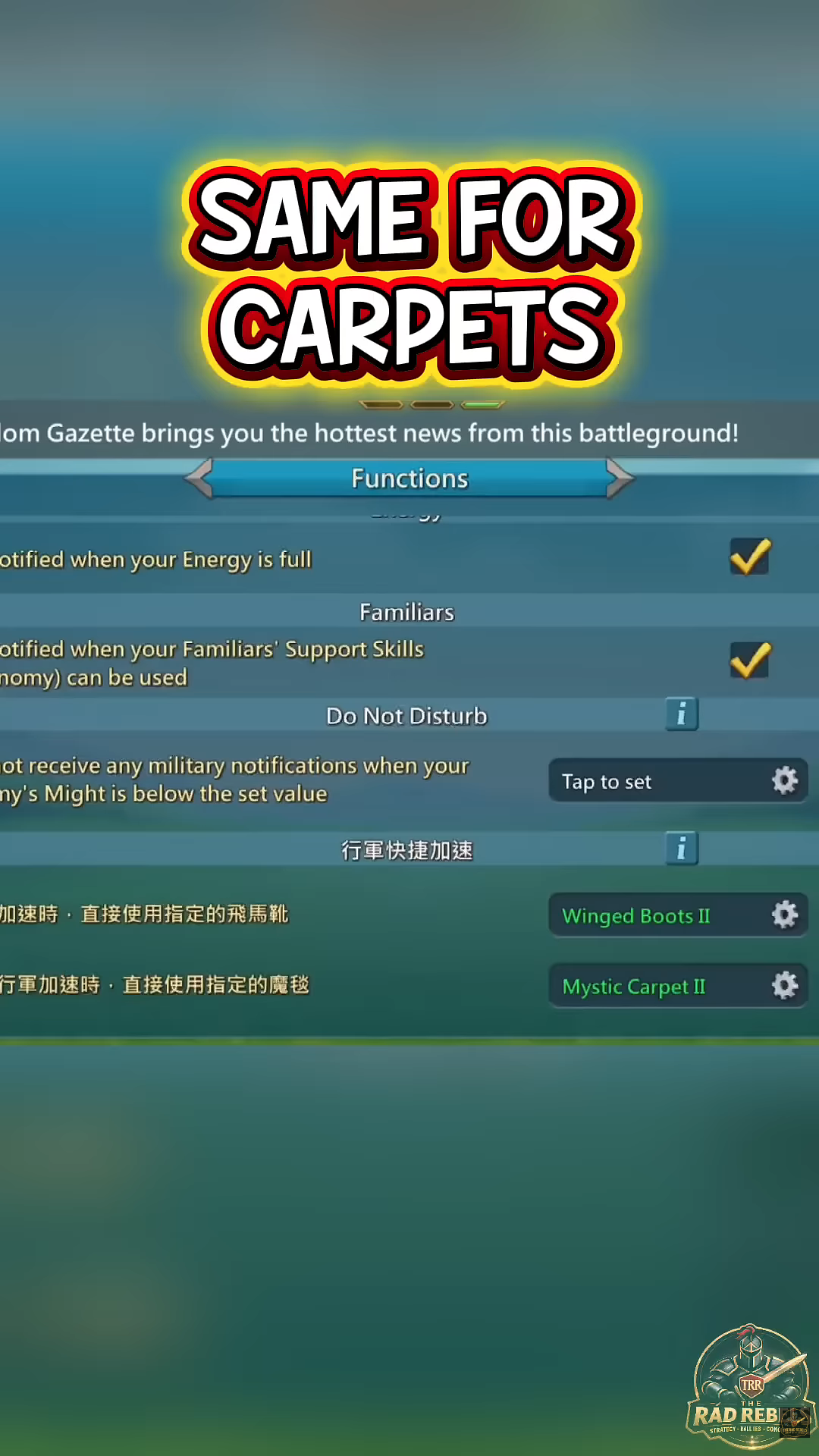
The Rad Rebels' October 15 review opens Functions. It shows two rows with gear icons: one for Winged Boots and another for Mystic Carpet. The recorded account selects Winged Boots II and Mystic Carpet II. That is the video's account state, rather than a recommendation that everyone choose the second option.
Winged Boots and Mystic Carpet are different march-speed consumables. The preset selects an item for the relevant action. Selecting Boots should not be treated as configuring Carpet too: the screen gives them different fields.
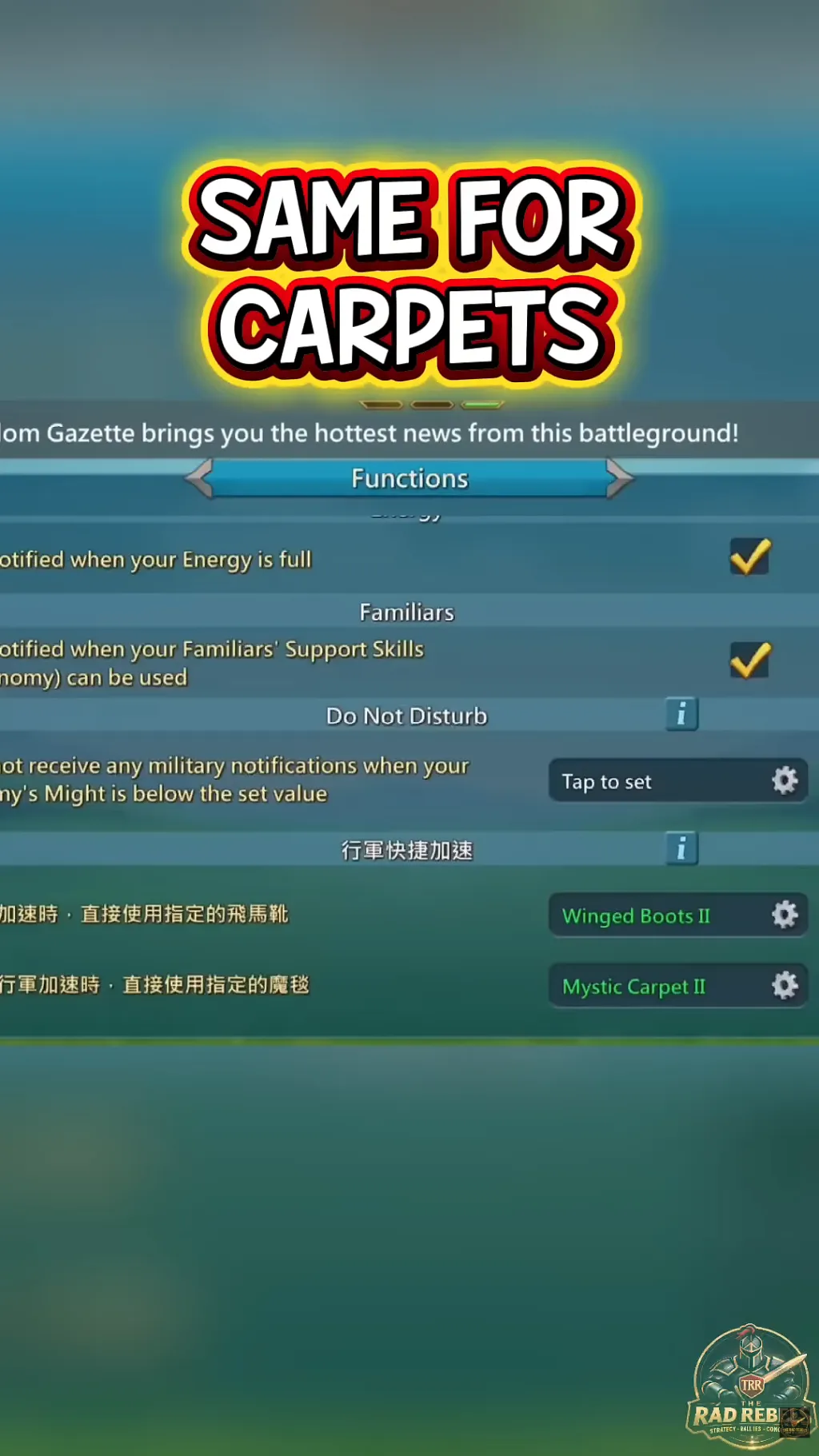
Open Functions settings in your own client and find both fields. Labels can vary by localisation: the recording mixes English and Chinese. Identify the item and its setting rather than relying on an exact row position. Open the original Functions screen at full size.
Check the item, stock and category
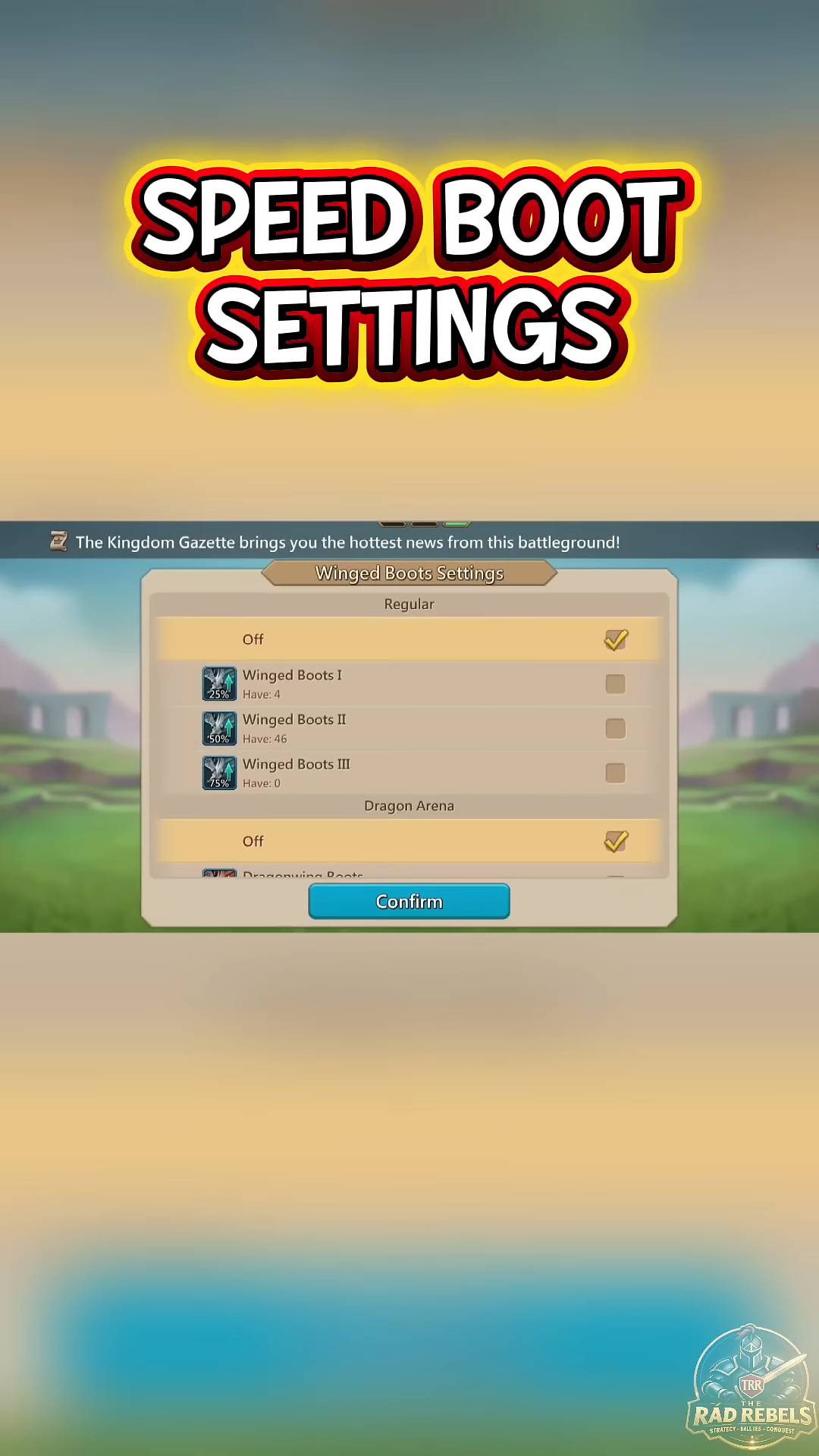
Winged Boots Settings shows a separate Regular category. It lists Off and Winged Boots I, II and III, marked 25%, 50% and 75%. Each has a Have counter showing the recorded account's stock: four, 46 and zero. Your quantities will differ.
A separate Dragon Arena category begins below. The window marks Off independently under Regular and Dragon Arena. Open the relevant category to check its mark rather than assuming that one category inherits the other. Confirm appears below the list.
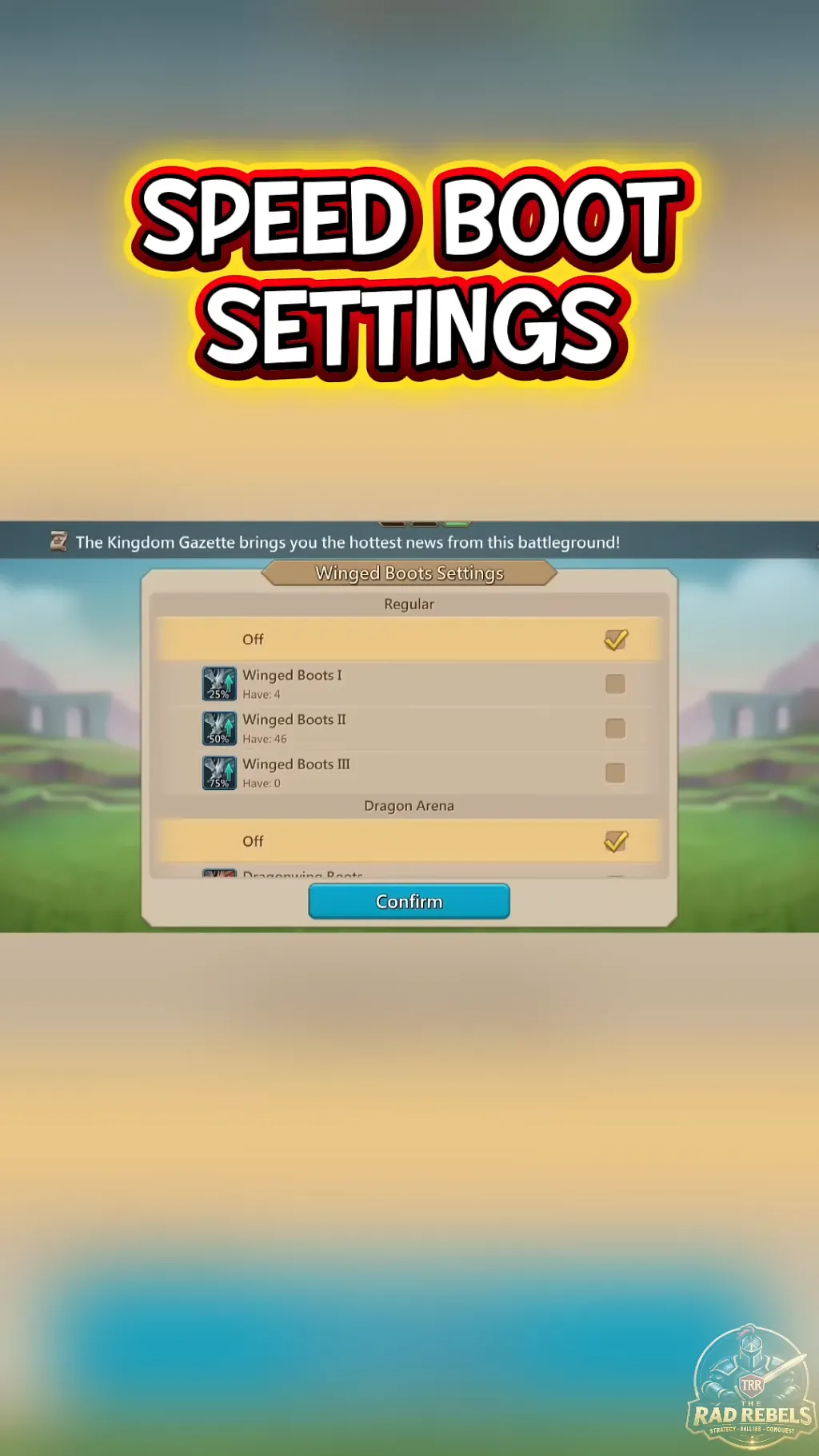
Before confirming, compare the item name, its displayed percentage and your own stock. Do not select an option simply because its icon looks stronger: first decide which consumable you want for this march. Open the original Boots list at full size.
These frames explain the setting's layout. They do not establish what happens when the selected item's stock is zero: whether the game substitutes another option or requires an additional action. Do not rely on substitution without checking your client's description.
The camera does not select a consumable
The same IGG update separately describes march settings for whether the camera automatically follows troops after deployment or a speed-up. That controls your map view. Selecting Boots or Carpet belongs to the different auto-speed setting.
A camera staying in place after deployment says nothing by itself about the selected Boots. Conversely, a preset item does not prove that it is consumed every time troops move. The release notes describe selecting an item for auto-speed, without announcing continuous automatic spending during every march.
Before your next march
Open the correct field, choose the category, check the item and stock, then confirm your choice. Configure camera follow separately for your preferred map view. This helps you deliberately select the consumable; it promises neither lower spending nor a won battle or protection from a trap.
The update also introduced Heroic Saga with separate entry requirements. Its development is not used to choose Boots here: these are independent features of the same patch.