

Pair missing from Lineup? Share your squad in Viking Rise chat
Two ways to share hero information: through Lineup or chat’s plus button. Where to choose a recipient, and how Troop differs from Jewel.
Published · Updated
If the pair you need is missing from Lineup, try opening chat and the Troop tab under the plus button. This is another way to show a squad to your allies. First decide what you want to discuss: our Bjorn and Hobert comparison checks level, skill state and the second commander separately. Here we explain where to select a pair and who receives its information.
First route: hero → Lineup → share icon
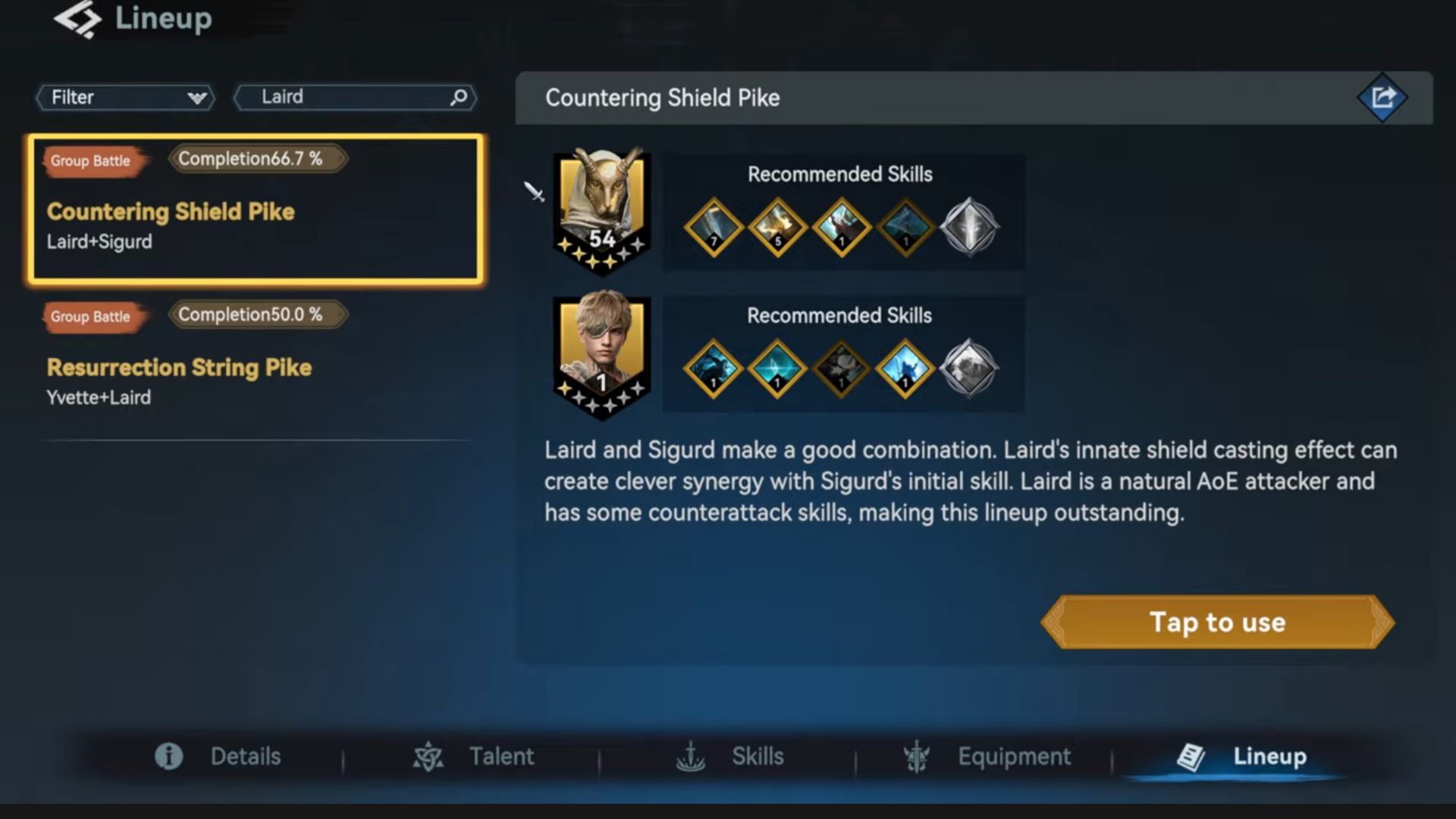
In Orexyn’s recording dated 24 October 2026, the player opens Laird and then the Lineup tab at the bottom. The screen shows suggested pairs: Laird+Sigurd and Yvette+Laird. Recommended Skills appear to the right of the selected pair. This is a recommendation screen, so check both names in the row first.
The two options display Completion 66.7% and 50.0%. The metric is called Completion; a single frame does not establish its formula or the pair’s win probability. If you need to show a different lineup, a similar recommendation name or a higher percentage does not replace the two heroes you actually want.
At 01:50, the share icon is at the top right of the selected recommendation. Tap to use is a separate control at the bottom. Do not choose a button from one familiar word: the recording uses the upper icon to share information in chat. Open Lineup and the button positions.
Then check which channel will receive the card
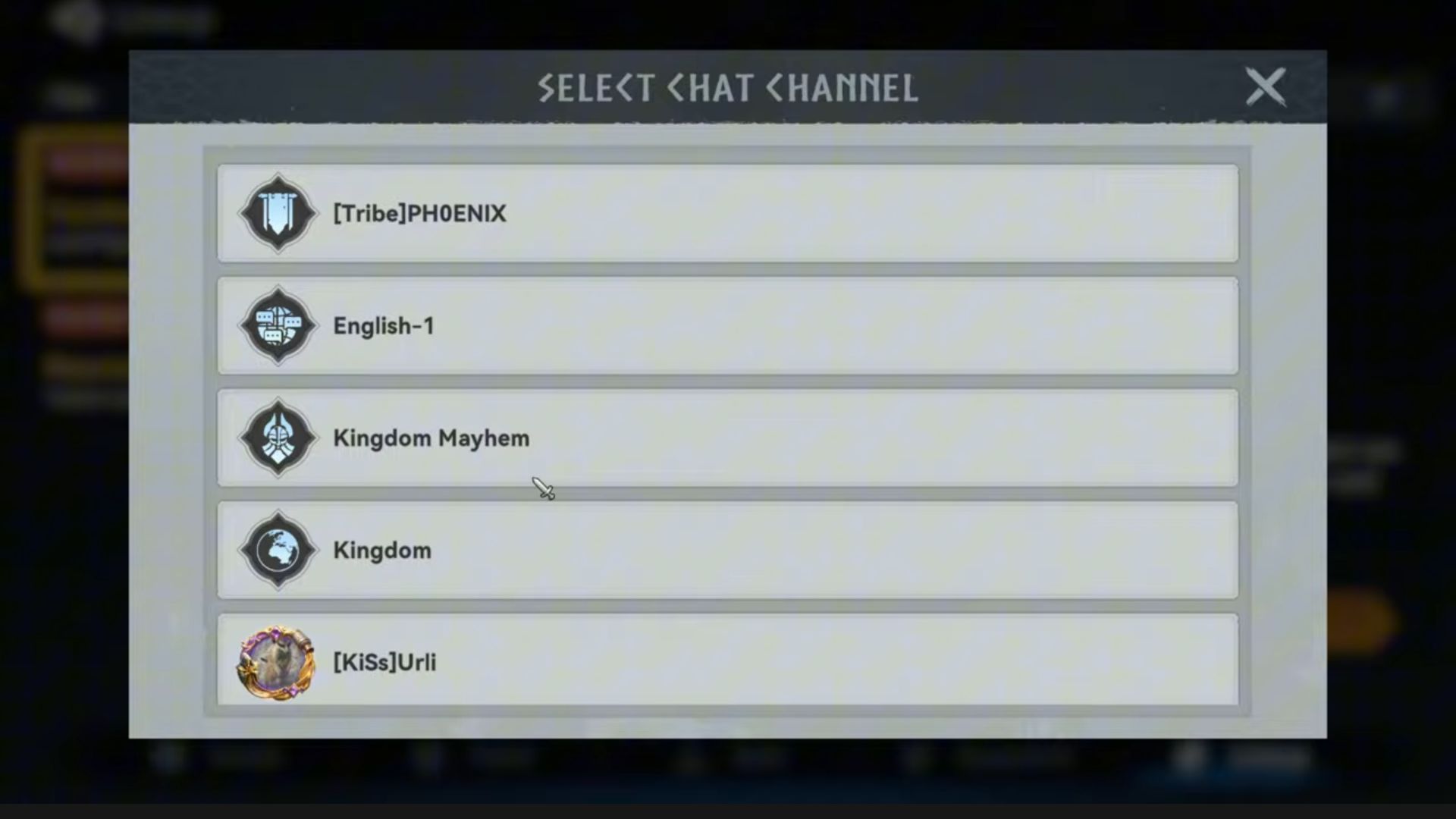
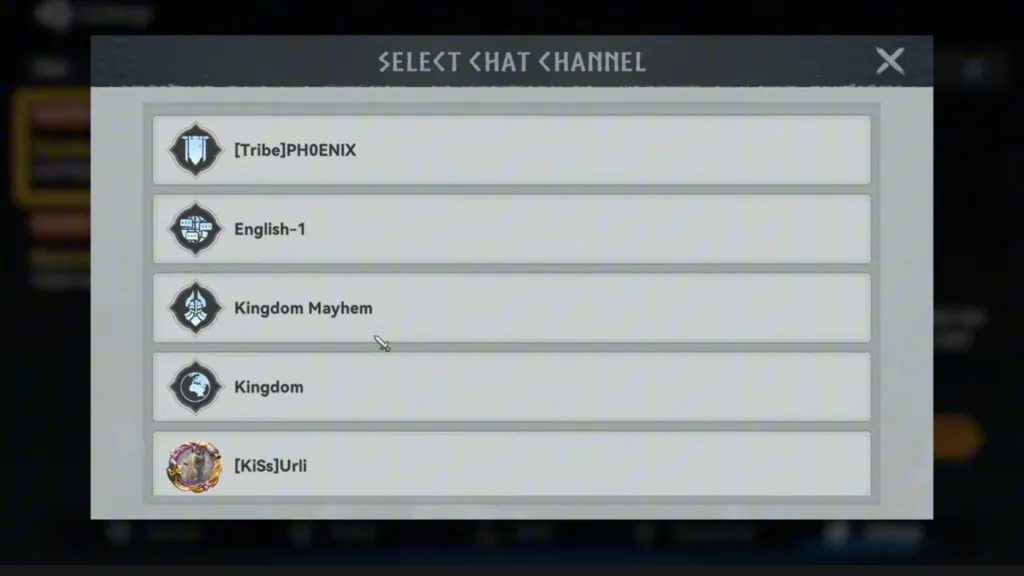
The upper icon opens Select Chat Channel. The shown window includes a channel marked [Tribe], English-1, Kingdom Mayhem, Kingdom and an available contact. [Tribe] helps identify tribal chat; the public Kingdom channel and a personal contact are different recipients.
No search field is visible in this window at 02:00. Do not continue with the first plausible row if you intended to contact a particular person. Check the recipient’s name. The second route lets you open the intended conversation first and select the information there. Open the actual channel selection window.
Second route: intended chat → plus → Troop
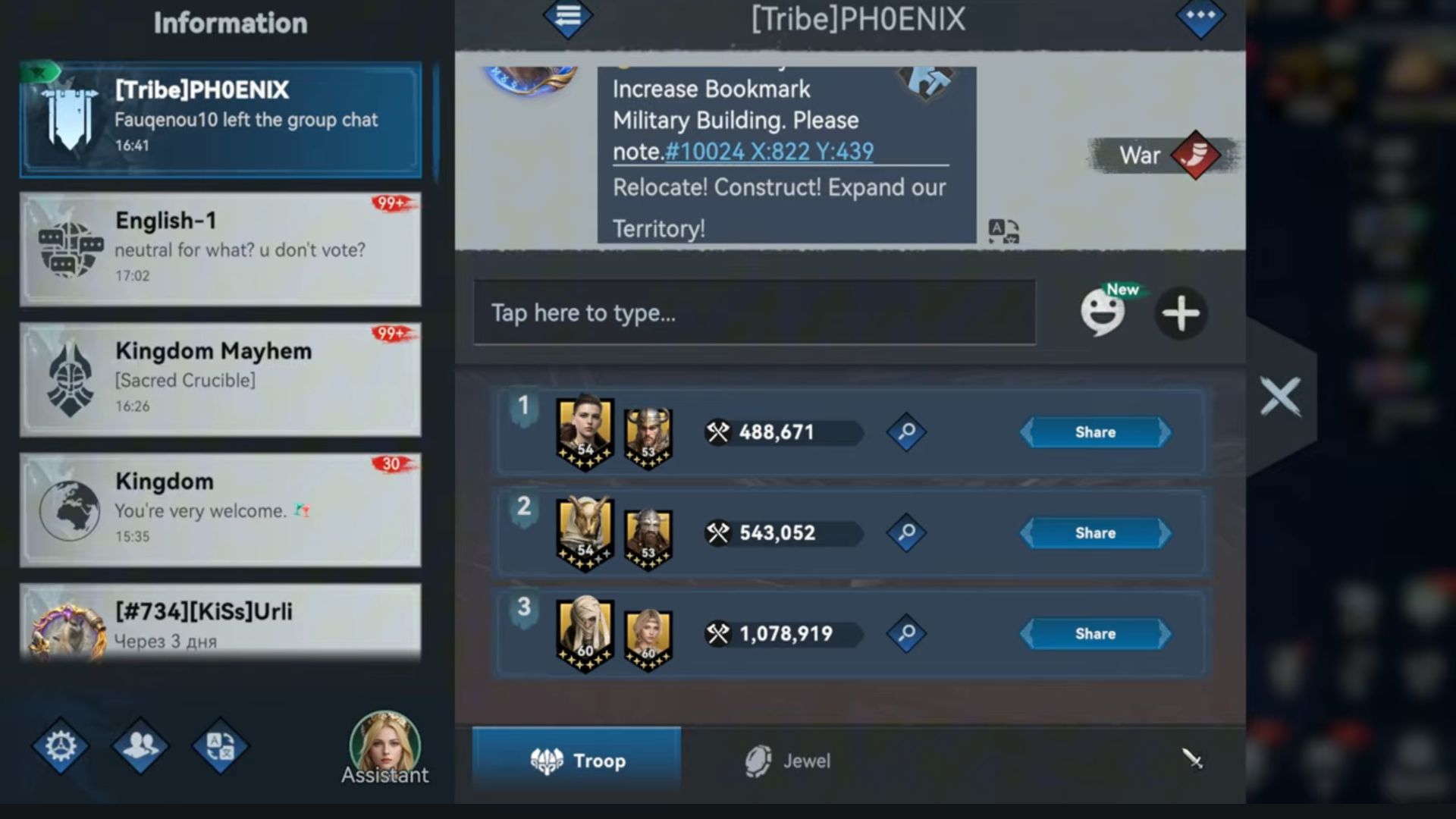
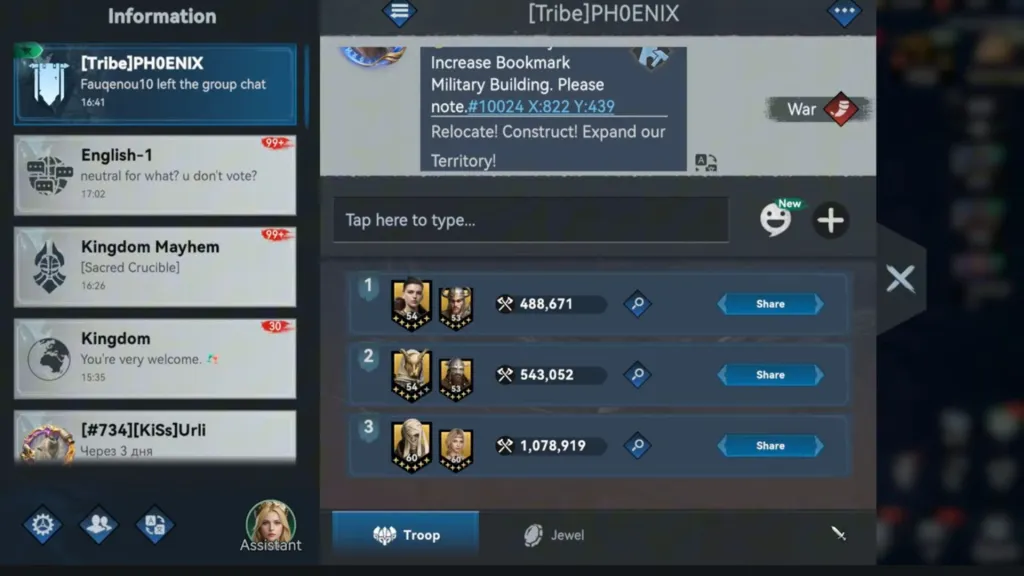
First select the conversation where you want to discuss the squad. At 05:10, a plus button appears on the right of the input row. It opens a lower panel with two tabs: Troop and Jewel. For a commander pair, the recording selects Troop, the squad panel.
At 05:12, three rows are visible. Each has two portraits, a numerical value, a magnifying-glass icon and its own Share button. Check both portraits in the intended row before pressing its button. The row number and one large figure do not explain which heroes you will show the other person.
Jewel opens a different panel: the next frame shows a jewel circle, Bond and a separate Share button. That is another kind of information. If an ally asks for your hero lineup, check that Troop is selected. Share appears in both sections. Open Troop with pairs and Share buttons.
Give your ally enough context to understand the question
Say what you want to compare: replacing a hero, choosing a skill or preparing a different troop type. When replacing a commander, state the second member of the pair and the current level of the relevant effect. This tells the other person which parameters stay the same and which change you want to assess.
If the question concerns a future upgrade, say so explicitly. The current skill, a preview of its next level and its awakened description refer to different states. If the share card does not answer your specific question, add the full relevant effect text and its level in a separate message or screenshot.
The recording shows an account with three prepared Troop rows. It does not establish that everyone must save exactly three squads to unlock sharing, nor explain how pairs enter the list. If your row is missing, check your configured squads and the options in your current client. What the recipient will see was not fully verified from these three frames.
Before sending, check three things: the intended conversation, the selected tab and both portraits. Afterwards, check that the expected information appeared in that conversation. This guide uses another player’s dated recording; the editorial team did not send messages from a game account or change its squads.